Getting paid on ByteMax (payment link)
This guide is for overseas suppliers (mainly CN/HK) receiving from customers in Brazil. On ByteMax, you create a payment link (Payment link) in BRL and the payer pays via Pix. After confirmation, you track the status and the balance in your Wallet and use the payment/order ID for reconciliation, support, and fraud prevention.
Before you start
- Have your ByteMax account active and access to the Wallet.
- Complete KYC/KYB, which is required to receive payments: until it is approved, the Receive button in your Wallet is unavailable.
- Use an internal order ID (example: ORDER-1042) in the chat and keep your records organized.
- Agree in writing on the amount in BRL, what will be delivered, and the expected timeline (this helps reduce disputes).
- Remember: Pix and CPF/CNPJ are from the payer in Brazil. Use payer data only for reconciliation (data minimization).
How to create a link
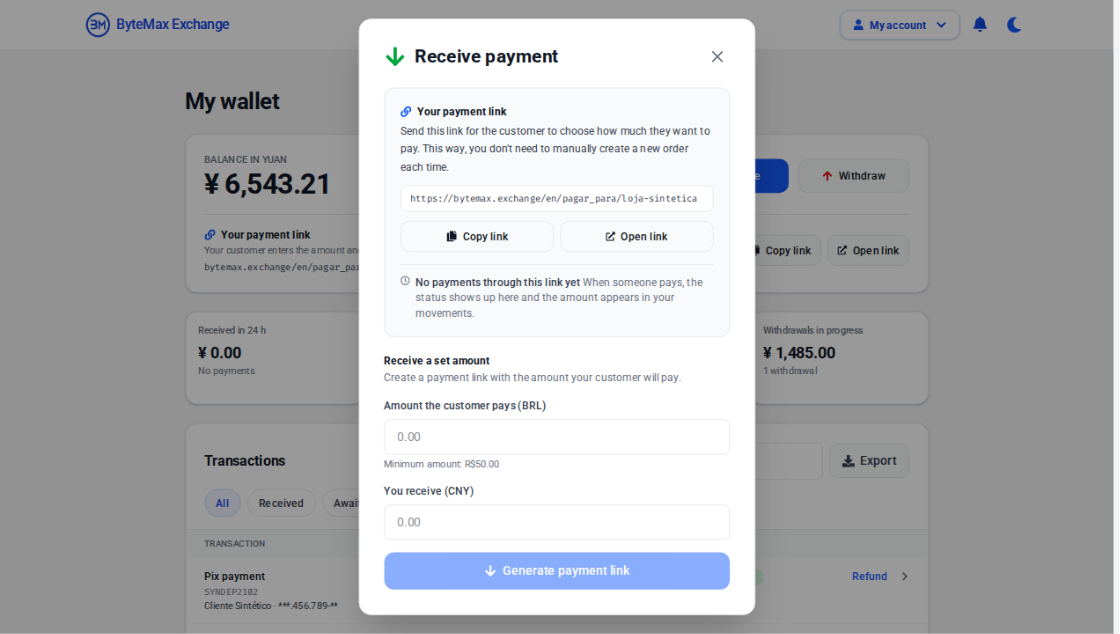
- Open the Wallet and click Receive on the balance card.
- To let the customer choose the amount, copy your fixed payment link.
- To charge a specific amount, enter the amount the customer pays (BRL) and check how much you receive (CNY).
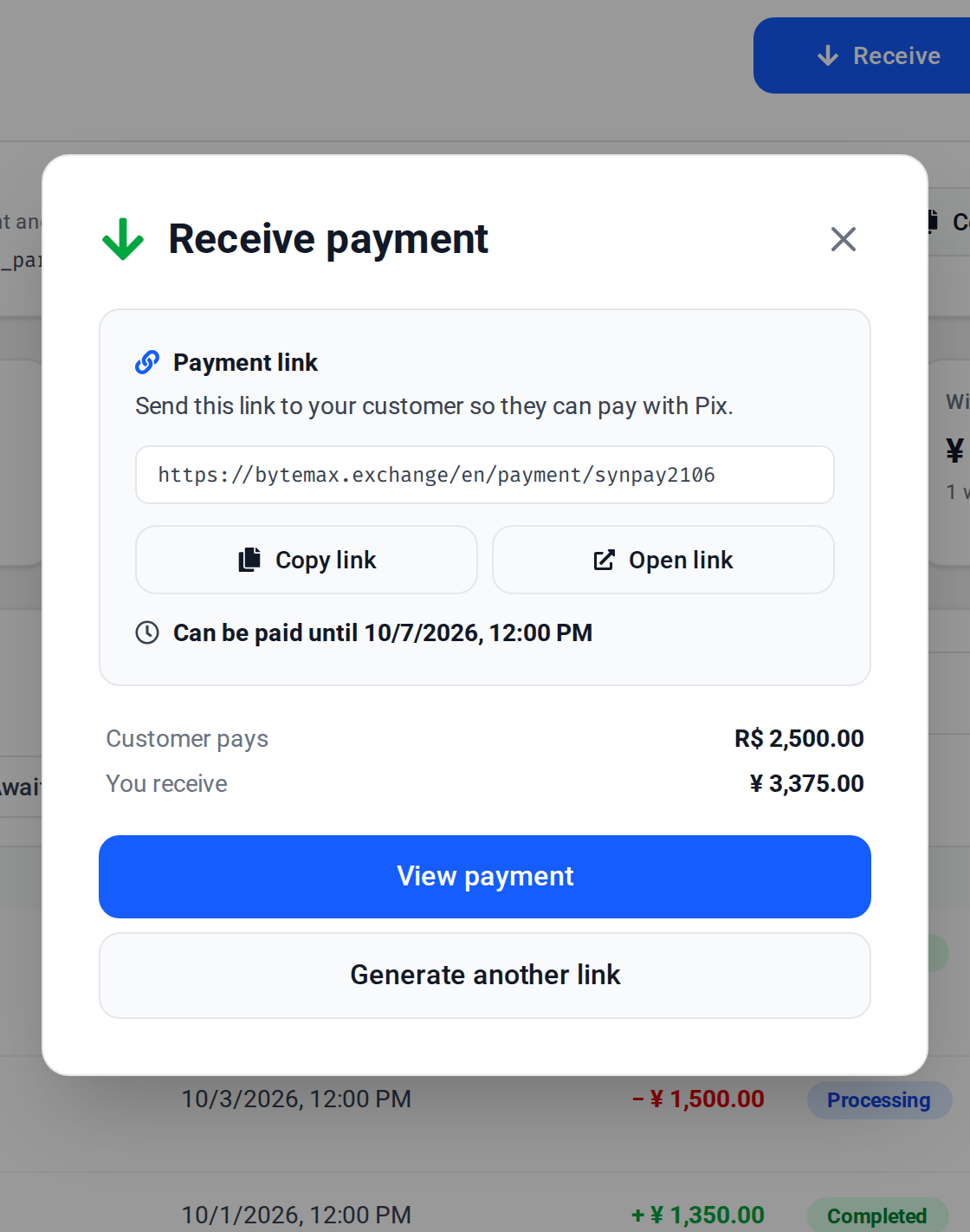
- Click Generate payment link and copy the link.
- Send the link to the payer and wait for the payment confirmation.
How to share with the customer
- Send the link together with your internal order ID and the agreed amount.
- Ask the payer to verify the domain and the general details before paying.
- Avoid reusing a one-time link for multiple people. Use the fixed link for variable/recurring payments.
- If the payer reports an error or expiration, generate a new link and share only the latest one.
How to confirm it was paid
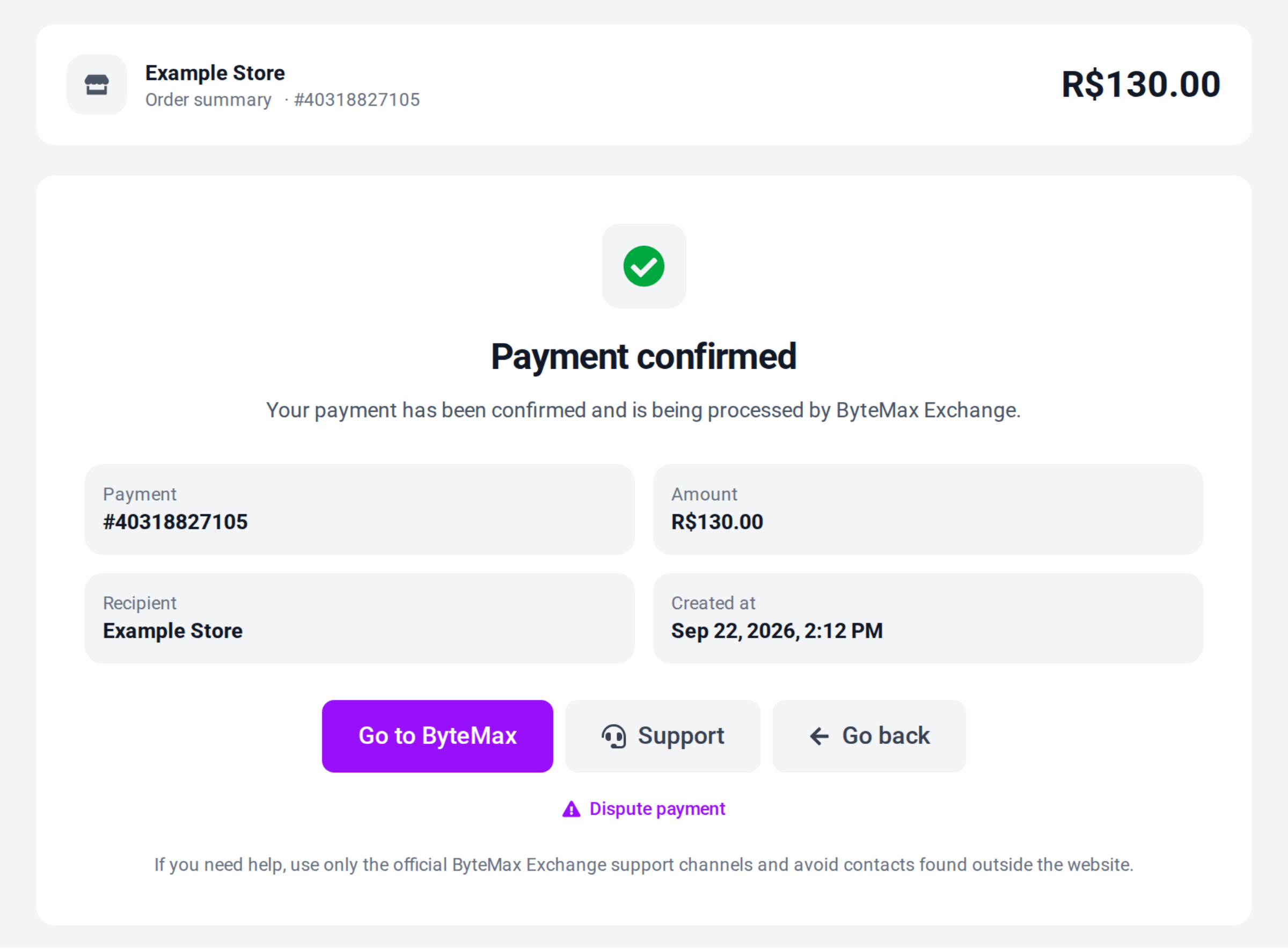
After the payer completes Pix, ByteMax updates the order status. Use the platform status as the source of truth.
- Check the status on the payment page and in the Wallet.
- In the Wallet, the payment's row shows the payer's name and CPF/CNPJ when available; click the row to open the payment's page.
- Use the payment/order ID when contacting ByteMax support.
- If the status stays stuck, record the time (UTC and BRT) and contact support with screenshots without sensitive data.
What the payer sees
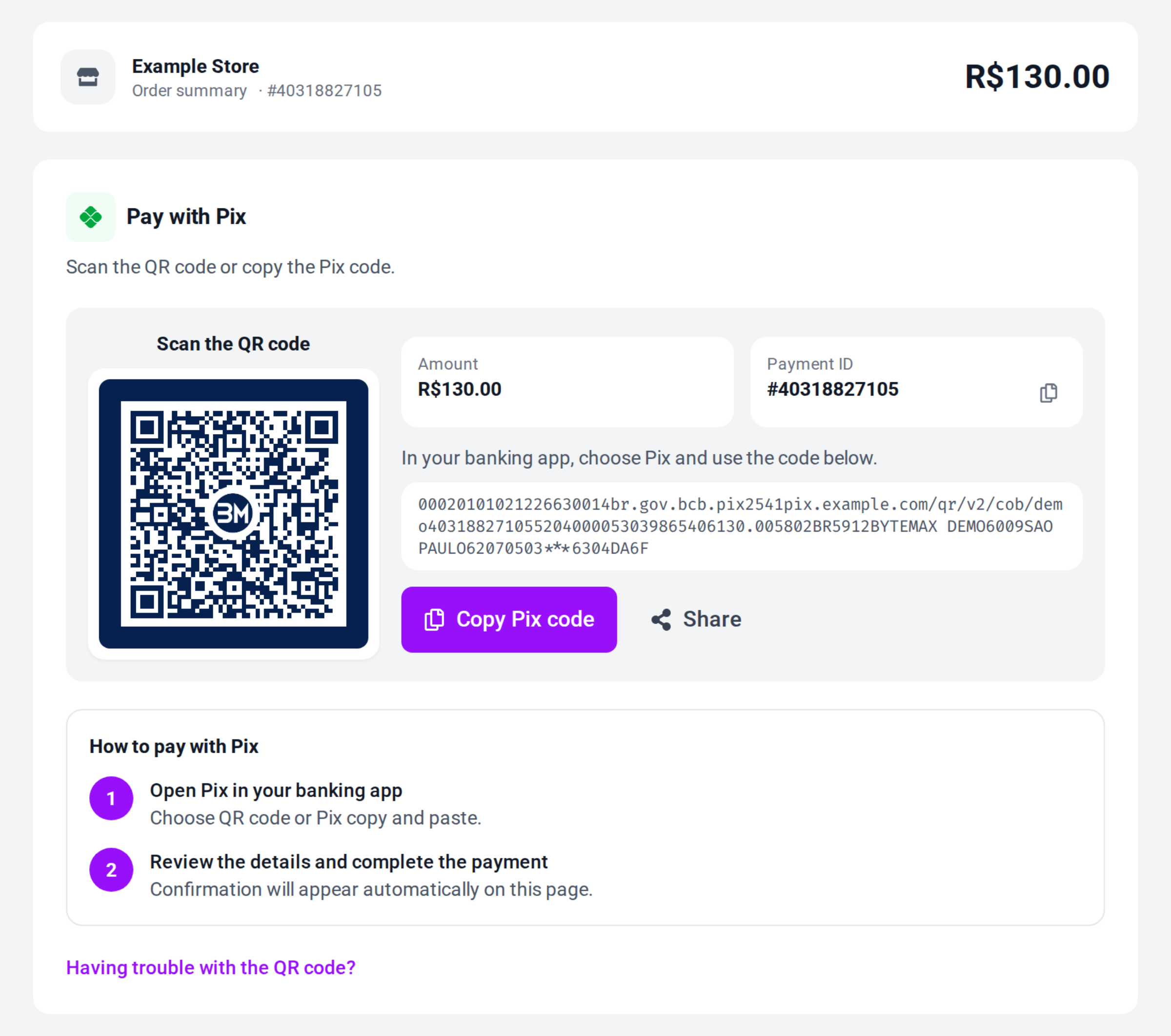
The Brazilian payer will see a Pix payment page. Give clear guidance on what to verify to reduce errors and fraud.
- Pix QR code and a button to copy the Pix code (copy and paste).
- The amount in BRL and the recipient/intermediary identification (when applicable).
- A final confirmation screen once ByteMax recognizes the payment.
- Guidance: pay only via the official link and do not share the QR code publicly.
Best practices
- Keep a written record of the agreement (amount, timeline, what will be delivered) and store the conversation.
- Use an internal order ID in every message and in your own control sheet.
- For physical deliveries, keep shipping and tracking evidence. For digital services, keep activation/delivery proof.
- If the amount is wrong, avoid off-platform adjustments. Generate a new link and document the correction.
- Do not request or store more sensitive data than needed. Payer CPF/CNPJ should be used only for reconciliation and risk checks.
- If a dispute happens, respond quickly with objective evidence and redact irrelevant PII.
- Avoid relying on screenshots as proof: confirm the status as Completed/Paid on ByteMax before releasing the order.
Need help? Contact ByteMax support
If something differs from what you see on screen, follow what the screen shows and send these details to speed things up.
- Payment/Order ID (e.g., PAGAMENTO-000123 or ORDEM-000123).
- Approximate date & time (include timezone: UTC or BRT (UTC-3)).
- Amount, currency (BRL/CNY) and the status shown.
- Screenshots without unnecessary sensitive data (keep the ID visible).
- If there's a dispute: 1 or 2 chat screenshots showing the agreement and the relevant receipts.