Pix and QR code: common issues
If you paid with Pix and the status did not change, the QR code expired, or the amount does not match, follow this guide before contacting ByteMax support. It helps resolve issues faster and avoids duplicate payments.
Understanding the order status
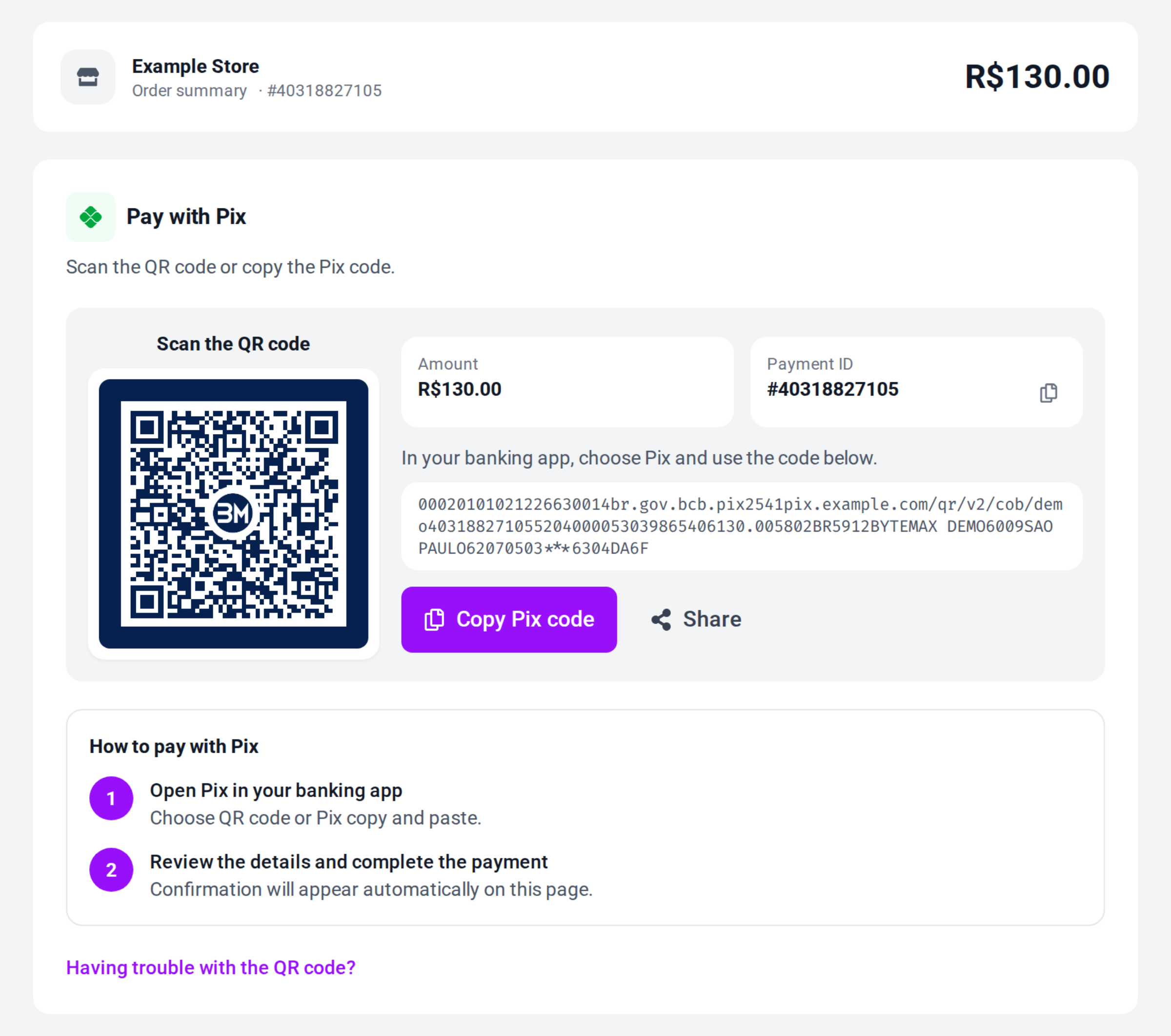
- Waiting for payment: ByteMax has not detected a valid Pix for this payment ID yet.
- Processing: Pix was detected and ByteMax is confirming/validating it.
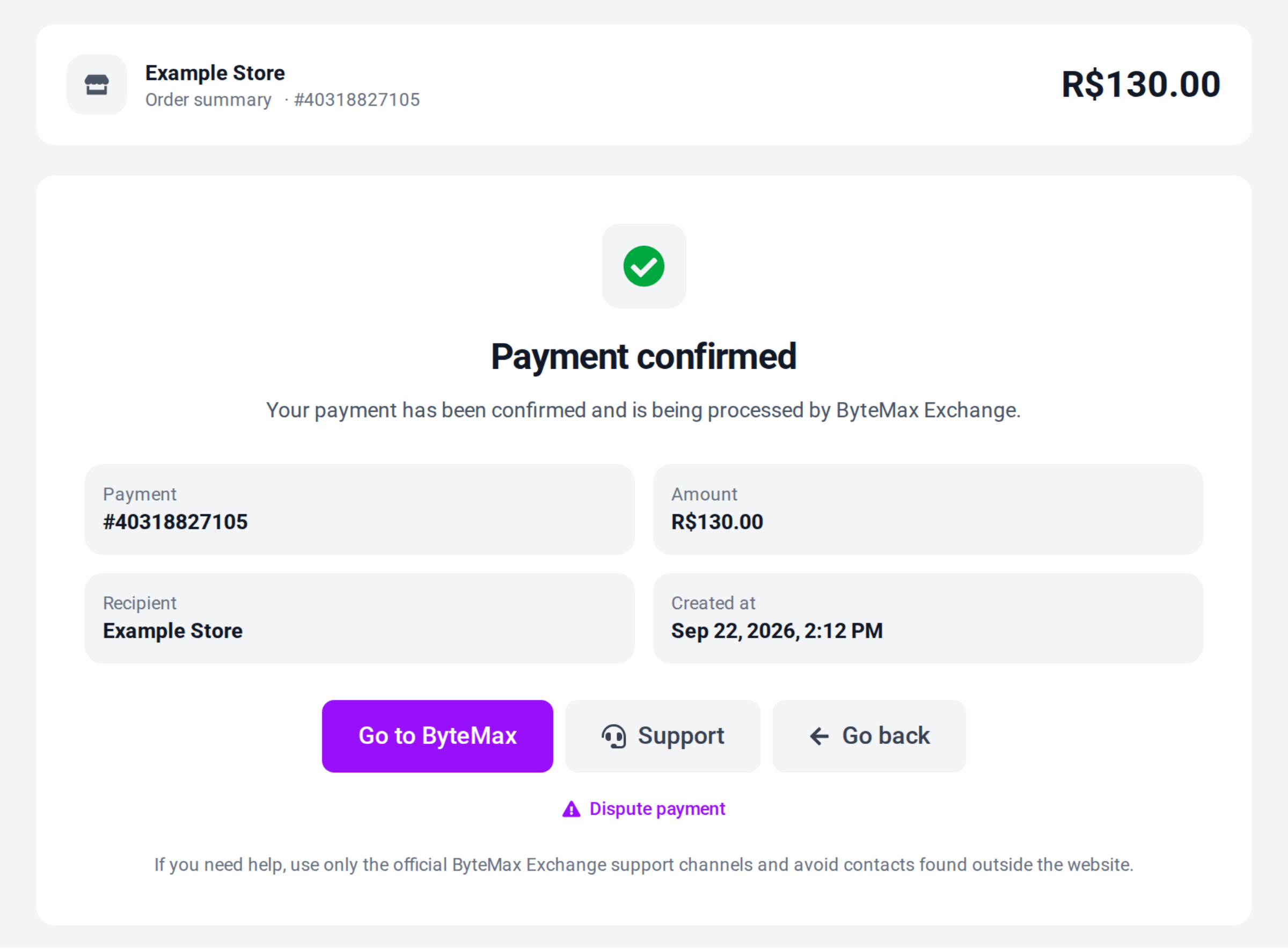
- Payment completed: the order is confirmed and the success screen should appear.
- Expired/canceled: the QR code is no longer valid. Ask whoever sent the payment for a new link or, if the order is yours, create a new one.
Most common issues
I paid, but it was not recognized
- Wait 3-5 minutes and refresh ByteMax’s page (or reopen the link).
- In your bank app, confirm the Pix is completed (not just scheduled).
- Confirm the paid amount matches the order amount exactly.
- If possible, copy the payment/order ID and keep it with the receipt.
- If it’s still unchanged after 10 minutes, contact ByteMax support and send: ID, amount, time, and receipt.
The QR code expired
- Do not pay an expired QR code, even if your bank still shows the screen.
- If the link was for a set amount, ask whoever sent it for a new link; if it was the recipient's fixed link, open it again to create a new Pix.
- If you already paid and later saw that the QR code expired, follow the not recognized steps with your receipt.
I paid twice (duplicate)
- Gather both Pix receipts and the related order/payment ID.
- Do not open a dispute without guidance; first confirm whether both payments were confirmed.
- Contact ByteMax support and report that the same ID seems to have been paid twice.
I paid a different amount
- If the amount was lower, the order may stay as waiting for payment.
- If the amount was higher, it does not mean automatic confirmation; it depends on validation.
- Avoid sending an extra Pix to the same ID; prefer generating a new payment.
- Contact ByteMax support and send: ID, paid amount, expected amount, and the receipt.
Need help? Contact ByteMax support
If something differs from what you see on screen, follow what the screen shows and send these details to speed things up.
- Payment/Order ID (e.g., PAGAMENTO-000123 or ORDEM-000123).
- Approximate date & time (include timezone: UTC or BRT (UTC-3)).
- Amount, currency (BRL/CNY) and the status shown.
- Screenshots without unnecessary sensitive data (keep the ID visible).
- If there's a dispute: 1 or 2 chat screenshots showing the agreement and the relevant receipts.