
How to top up HubbuyCN with Pix
HubbuyCN charges in yuan, and a Pix top-up happens in two parts: you pick the amount inside HubbuyCN and pay on the ByteMax checkout page. This tutorial walks through both parts, screen by screen.
Before you start
- Sign in to your HubbuyCN account: the top-up always starts there.
- You do not need a ByteMax account. The payment happens on the checkout page HubbuyCN opens for you.
- Keep your banking app at hand to pay the Pix.
- The amount is chosen in yuan. HubbuyCN shows the total in the currency selected at the top of the site, and the amount in reais appears on the ByteMax payment page.
- The screens below have HubbuyCN set to Portuguese, through the language selector at the top of the site. If your account is in English, the button names differ.
Open the HubbuyCN user centre
Sign in and click your avatar in the upper right corner. That takes you to the user centre (Centro do Usuário), with your account card and, next to it, the orange yuan balance card. The top-up button (Recarregar) sits in that card.
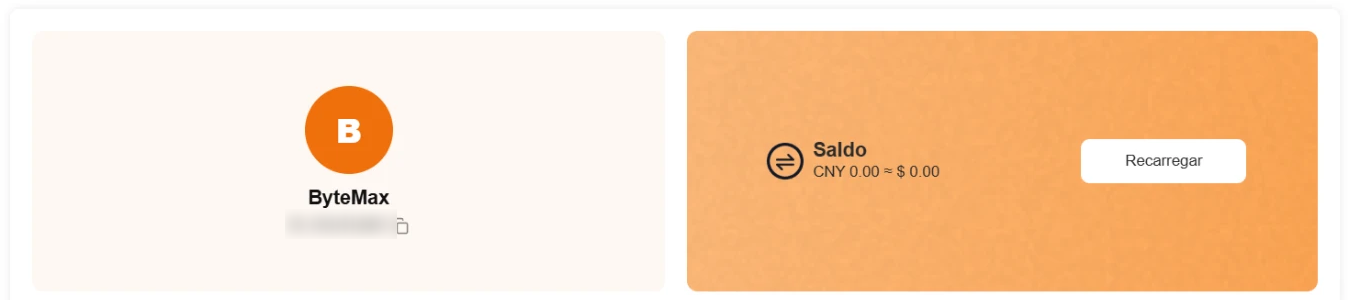
Click the top-up button (Recarregar) to open the top-up window.
Choose the amount in yuan
The top-up window asks for the amount in CNY. Type how much you want to add or tap one of the preset values. Next to the field you see the equivalent in the site currency, and a notice shows the maximum allowed per top-up.
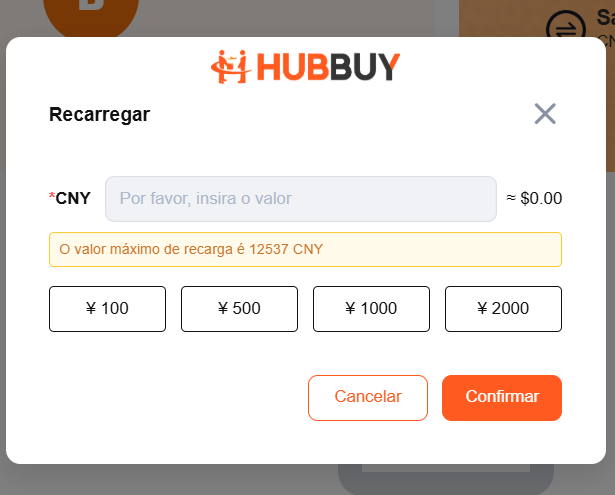
Check the amount and click confirm (Confirmar).
Select ByteMax as the payment method
HubbuyCN opens the checkout screen (Verificar) with the available payment methods, each with its own transaction fee. Select ByteMax, the line that says you pay in BRL using Pix. The list carries other Pix options from other providers: to pay through ByteMax, choose ByteMax.
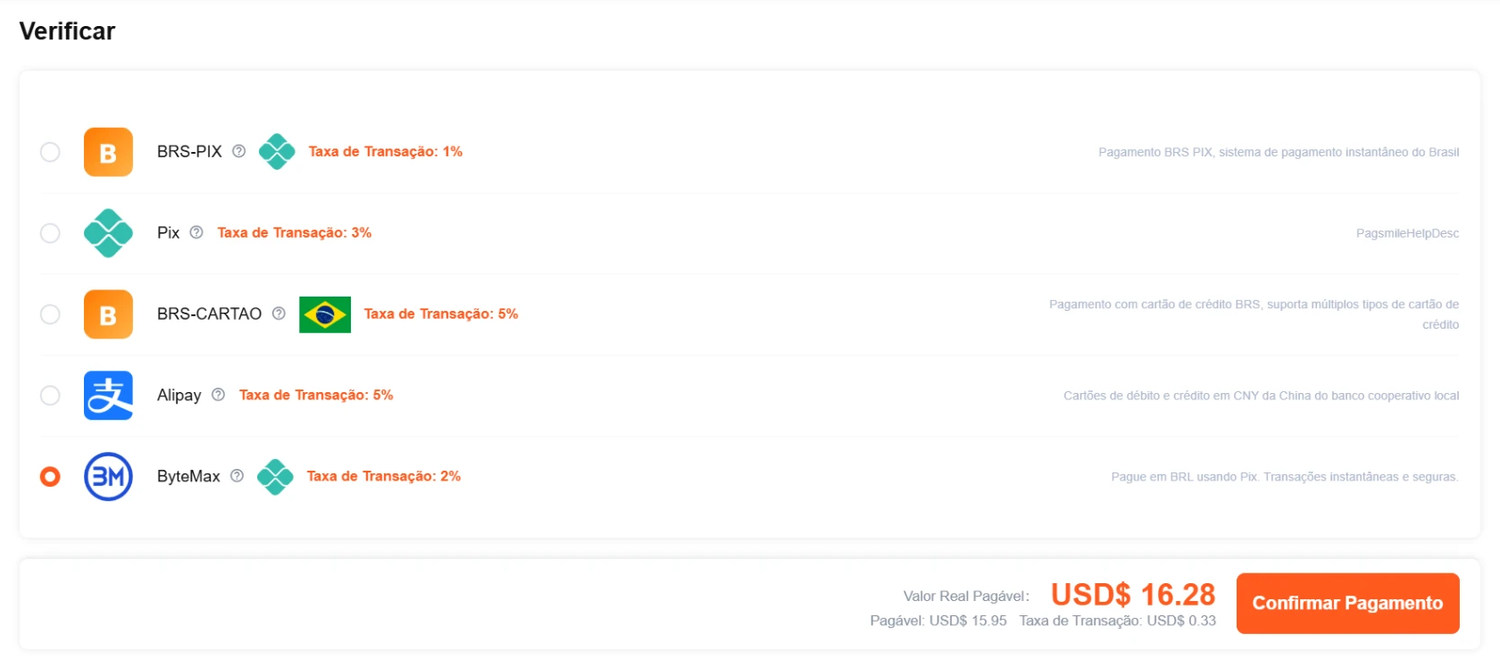
The total at the bottom changes with the method you pick, because each one has its own fee. Check it and click confirm payment (Confirmar Pagamento): HubbuyCN then sends you to the ByteMax payment page.
Pay the Pix on the ByteMax page
The page opens with the order summary — the store name, the payment number and the amount in reais — and right below it the Pay with Pix card, with the QR code and the code to copy.
- In your banking app, choose Pix and scan the QR code, or tap Copy Pix code and use the Pix Copia e Cola option.
- Check the amount before confirming.
- Leave the page open: the confirmation shows up there automatically.
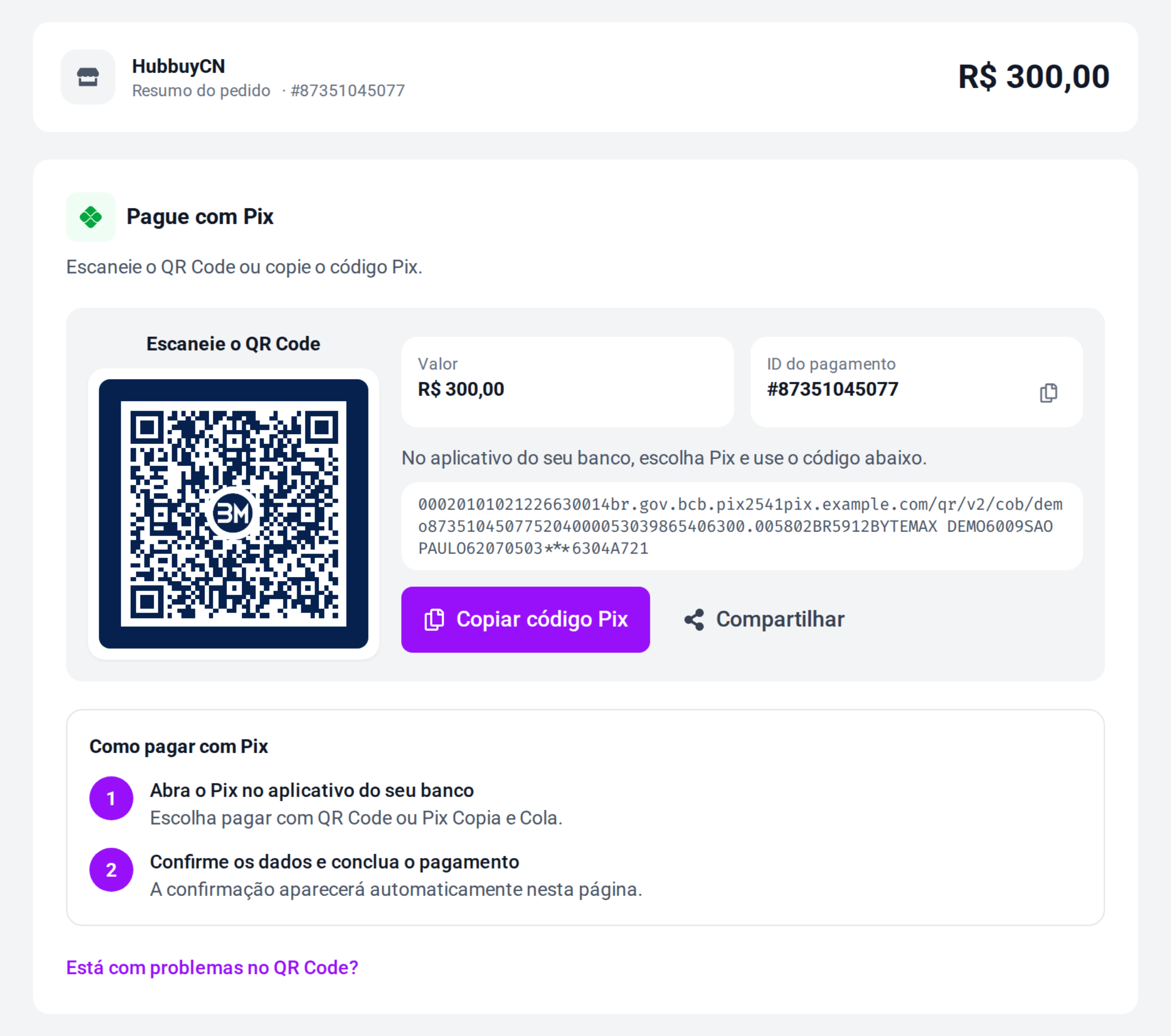
If the QR code does not work in your bank, the Having trouble with the QR code? link at the bottom of the page opens the help article about it.
Check the confirmation and go back to HubbuyCN
As soon as the Pix is confirmed, the page switches to Payment confirmed and shows the payment number, the amount, the recipient and the date. Keep that number: it is how support finds your top-up.
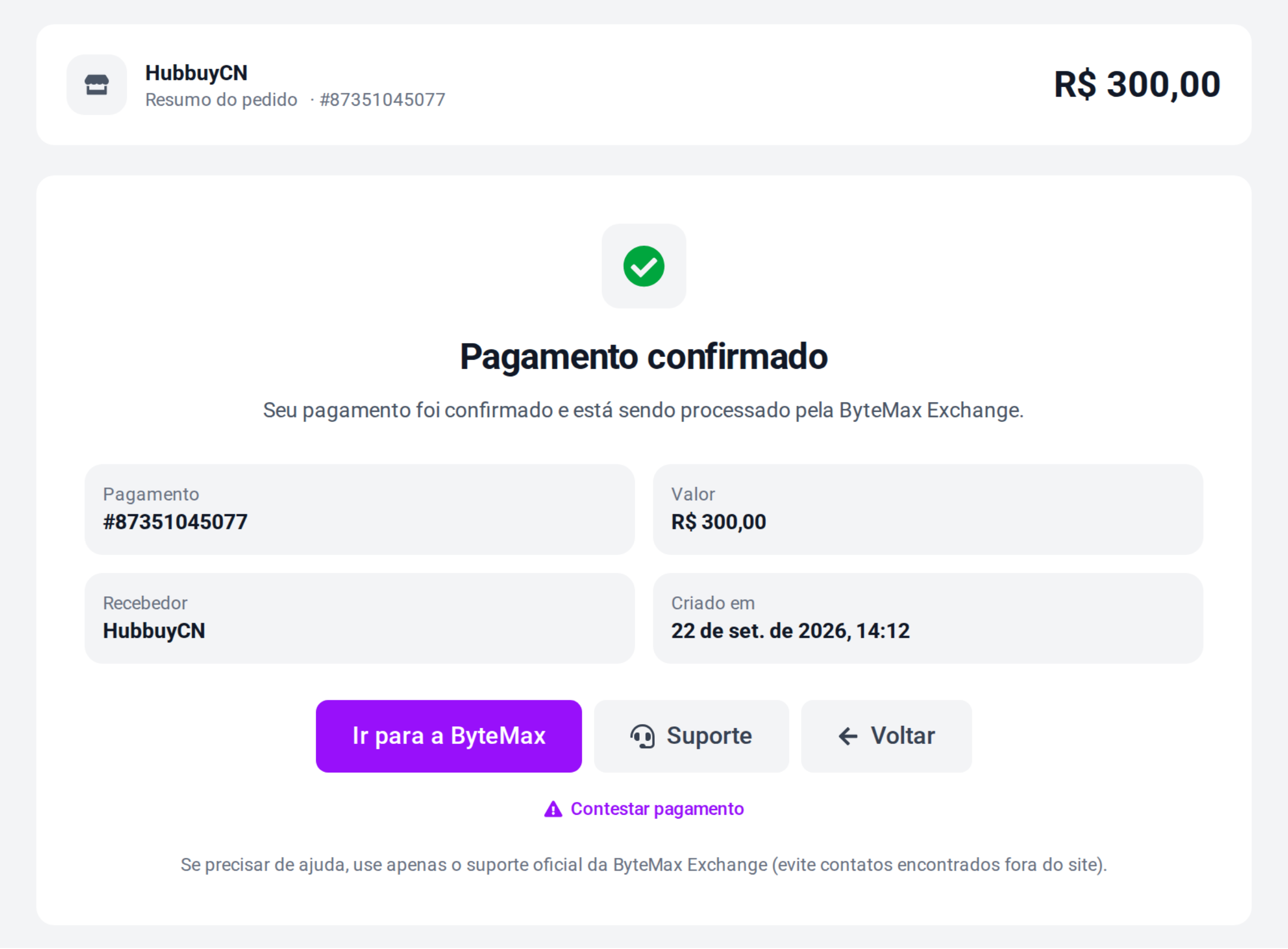
Go back to the HubbuyCN user centre and refresh the page: the new balance shows in the balance card.
Final tips
- Balance not there yet? Refresh the user centre after a few minutes. If it still does not show up, contact support with the payment number at hand.
- One Pix per top-up: if you pay the same code twice, contact support instead of starting another top-up.
- Use the official channels: ByteMax support inside the site and HubbuyCN support inside your account. Avoid contacts found outside those two sites.
- Need a refund? For top-ups already credited, getting the money back follows HubbuyCN's rules: use the withdraw option inside the account and check the timeframe shown there.
That is the whole path: pick the amount on HubbuyCN, select bytemax, pay the Pix and come back to check the balance.
Need help? Contact ByteMax support
If something differs from what you see on screen, follow what the screen shows and send these details to speed things up.
- Payment/Order ID (e.g., PAGAMENTO-000123 or ORDEM-000123).
- Approximate date & time (include timezone: UTC or BRT (UTC-3)).
- Amount, currency (BRL/CNY) and the status shown.
- Screenshots without unnecessary sensitive data (keep the ID visible).
- If there's a dispute: 1 or 2 chat screenshots showing the agreement and the relevant receipts.